PluginsFeatures
Introducing multi-environment management in ReadyCMS
Learn how ReadyCMS’ Multi-environment manager separates development, testing, staging, and production so teams can build and test changes...

Managing inventory in one place is already challenging. Add multiple stores, warehouses, or fulfillment centers, and things can get messy quickly. Stock updates fall out of sync, product availability becomes guesswork, and customers start seeing "available" items that aren't actually in stock.
That's why we designed the stock management system in ReadyCMS to handle multi-location inventory without the chaos.
Let's be real - most platforms aren't built for businesses with more than one storage or sales location.
Common issues include:
ReadyCMS fixes this with a system that brings all locations into one place.
Our dashboard is split into easy-to-use tabs:
These location tabs are named after your set store locations. Every store location that has the "Manage stock for this location" option enabled will be visible here.
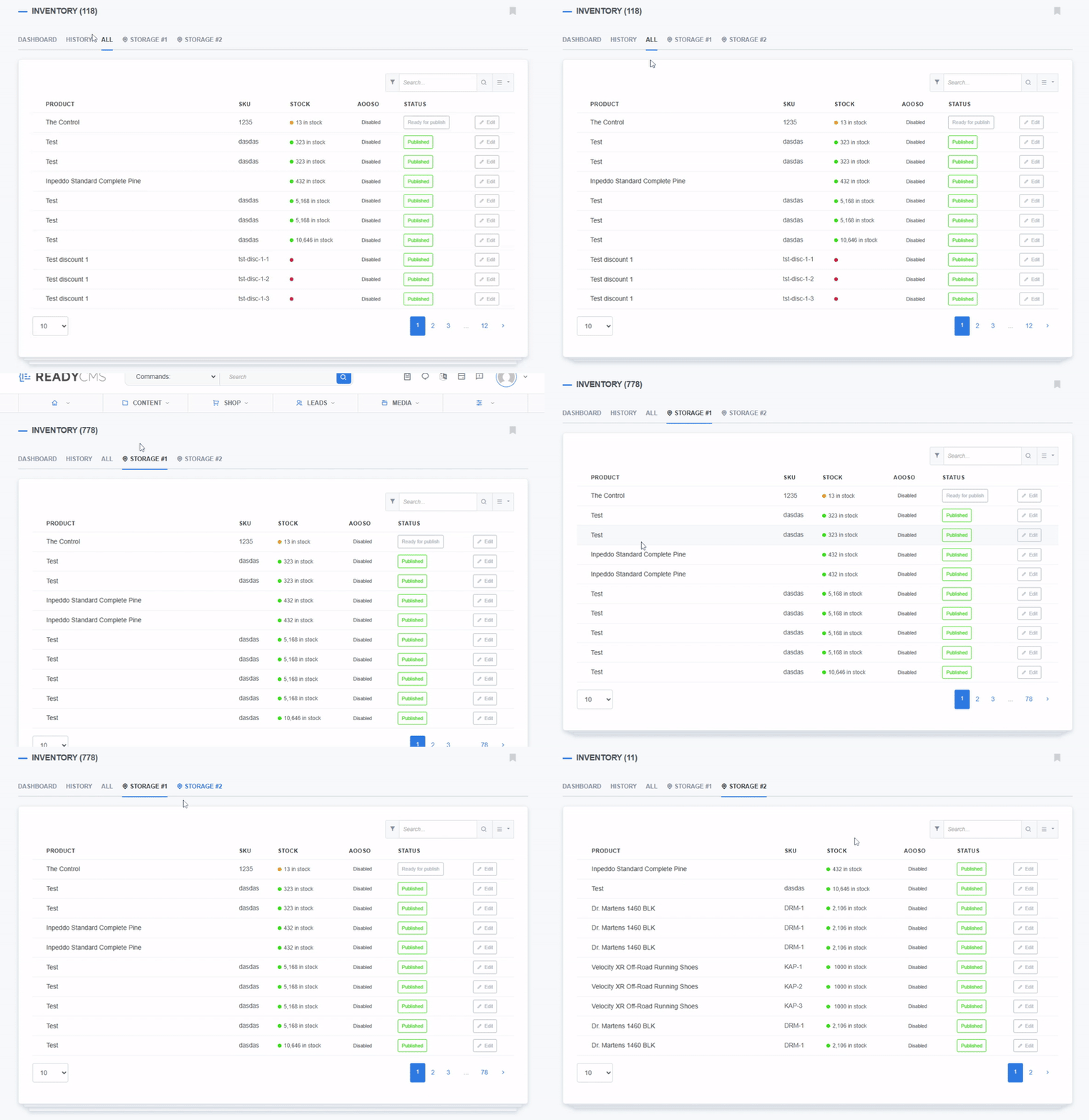
Whether you're managing stock in one location or ten, ReadyCMS ensures that inventory is updated in real time. And if you have multiple locations enabled, you can manage product stock for each location.
Each product has its own stock view that shows where your stock is located:
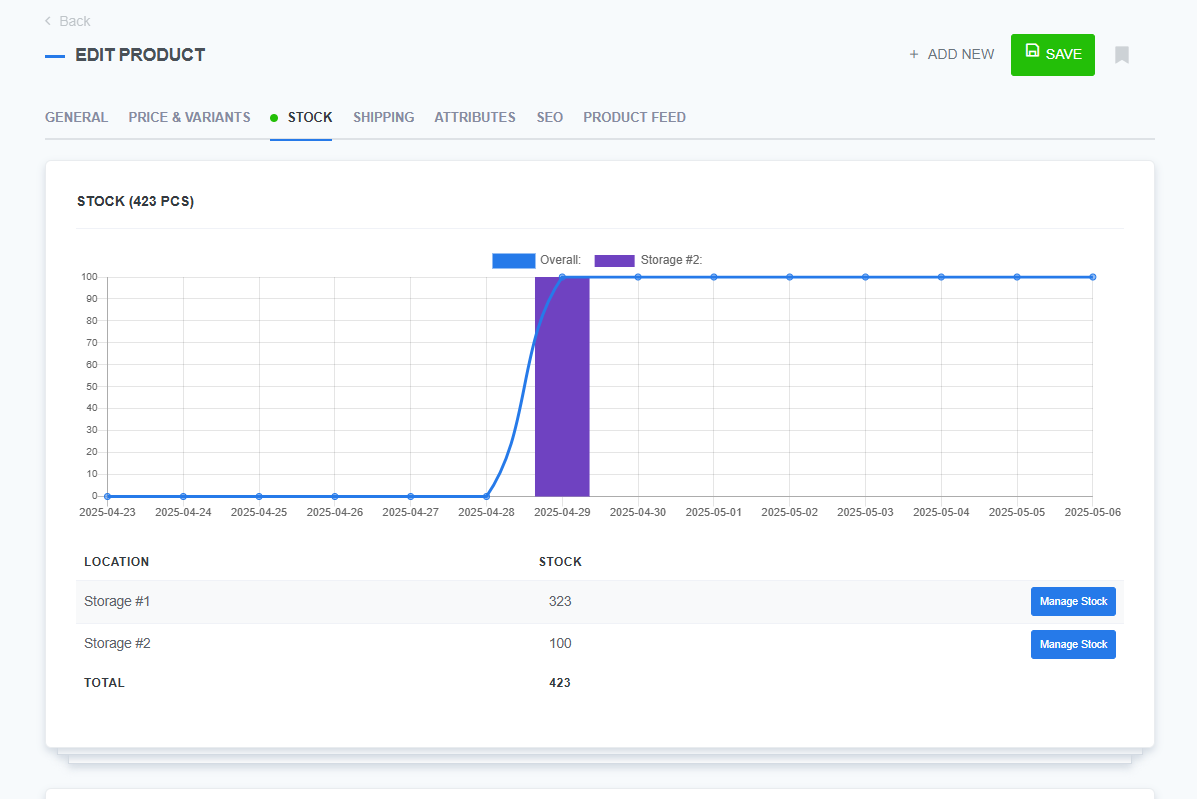
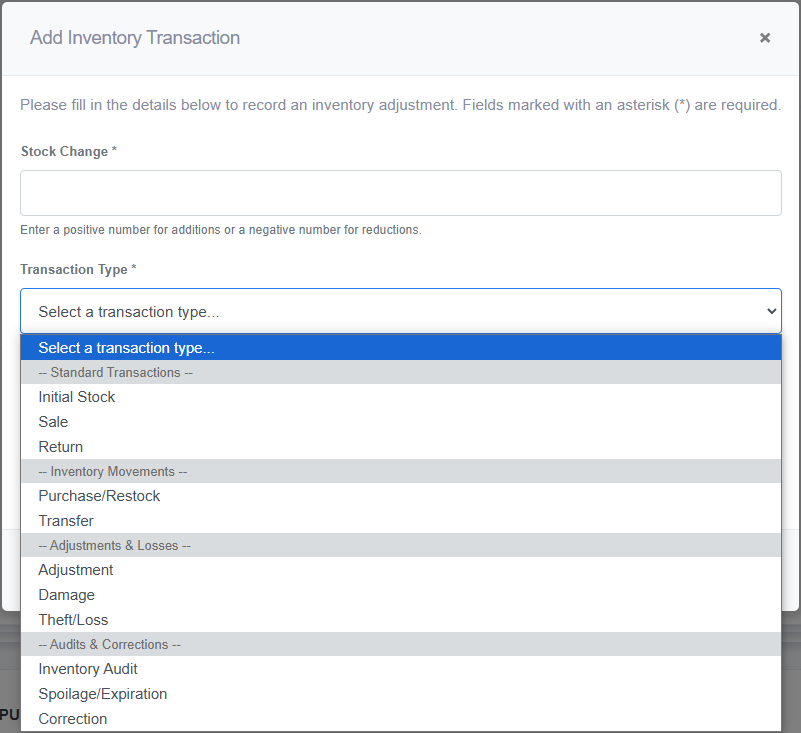
Per-location product tracking is especially useful if specific variants (like sizes or colors) are only stocked in certain places.
Every location you set up in shop settings gets a button in the system:

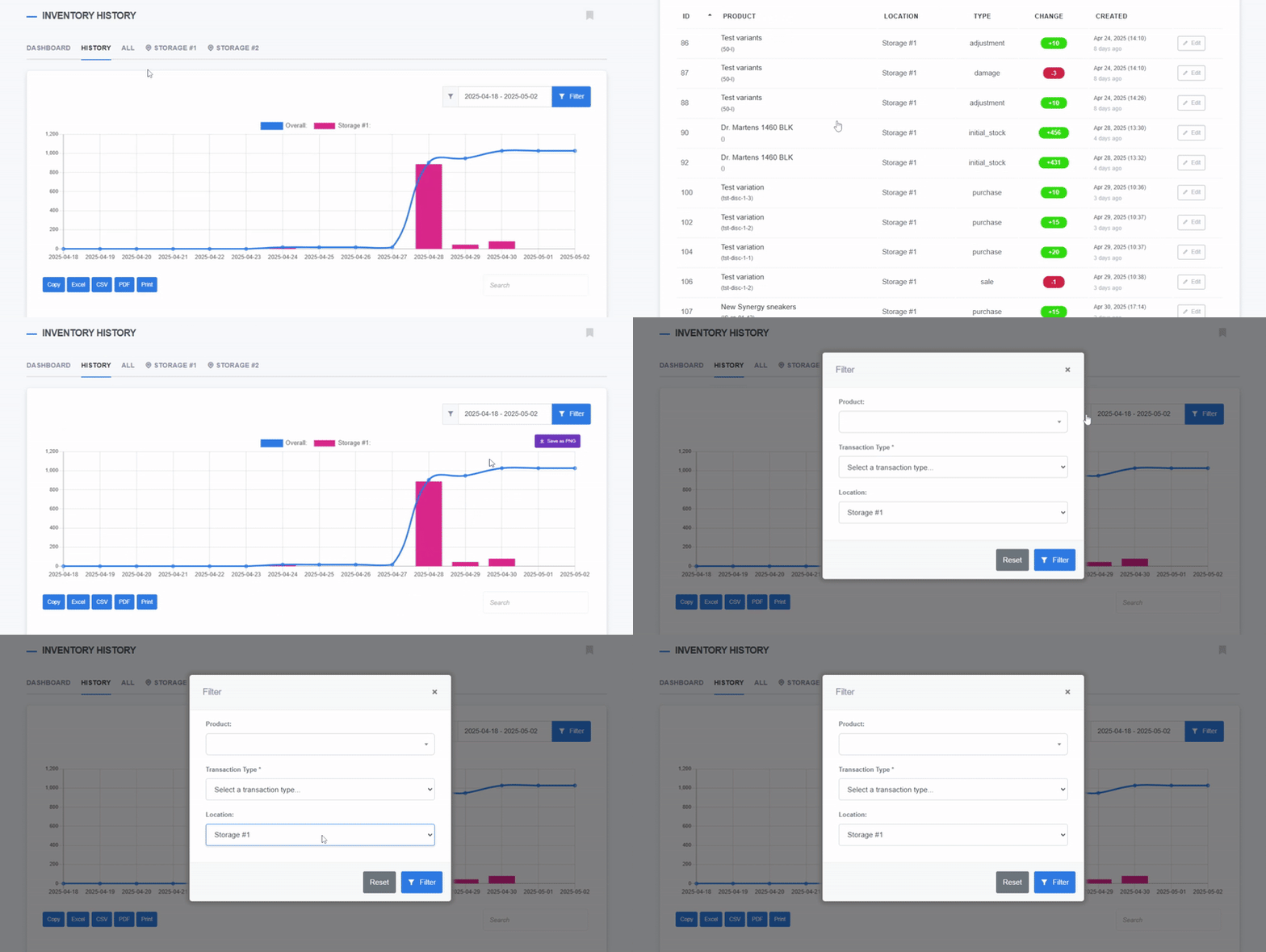
You can also configure each store independently:
Share this article
More from the blog
Learn how ReadyCMS’ Multi-environment manager separates development, testing, staging, and production so teams can build and test changes...
Learn how to ask customers for reviews without sounding pushy, including timing tips, email examples, common mistakes, and ReadyCMS...
See how opens, clicks, open rate, and click rate reveal what works—and how ReadyCMS Mail Metrics turns every send into useful feedback.
Build a practical three-email abandoned cart sequence with recommended timings, subject line ideas, message examples, and ReadyCMS...
Learn why customers leave products in their carts, what you can improve during checkout, and how automated ReadyCMS emails can help...
ReadyCMS Assistants can simplify your website tasks, enhance SEO, and improve content quality with expert guidance.
Book a demo or talk with our team about putting these ideas to work.