PluginsFeatures
Introducing multi-environment management in ReadyCMS
Learn how ReadyCMS’ Multi-environment manager separates development, testing, staging, and production so teams can build and test changes...

After the big update to stock management in ReadyCMS, many clients asked us, "Okay, but how exactly does it work?"
This blog answers that. We'll go through the key components of our inventory system and show you how it all connects, from setup to daily use.
At the heart of ReadyCMS stock management is a transaction-based system. Instead of simply storing a number for each product, we record every stock movement. Every sale, return, adjustment, or manual update is tracked and timestamped, creating a clear, auditable history of stock changes.
It is designed to provide flexibility, real-time updates, and support for multiple locations.
It's the quiet hero that ensures every order is fulfilled, every location is in sync, and every product has just the right amount of visibility.
Here's how we structured it:
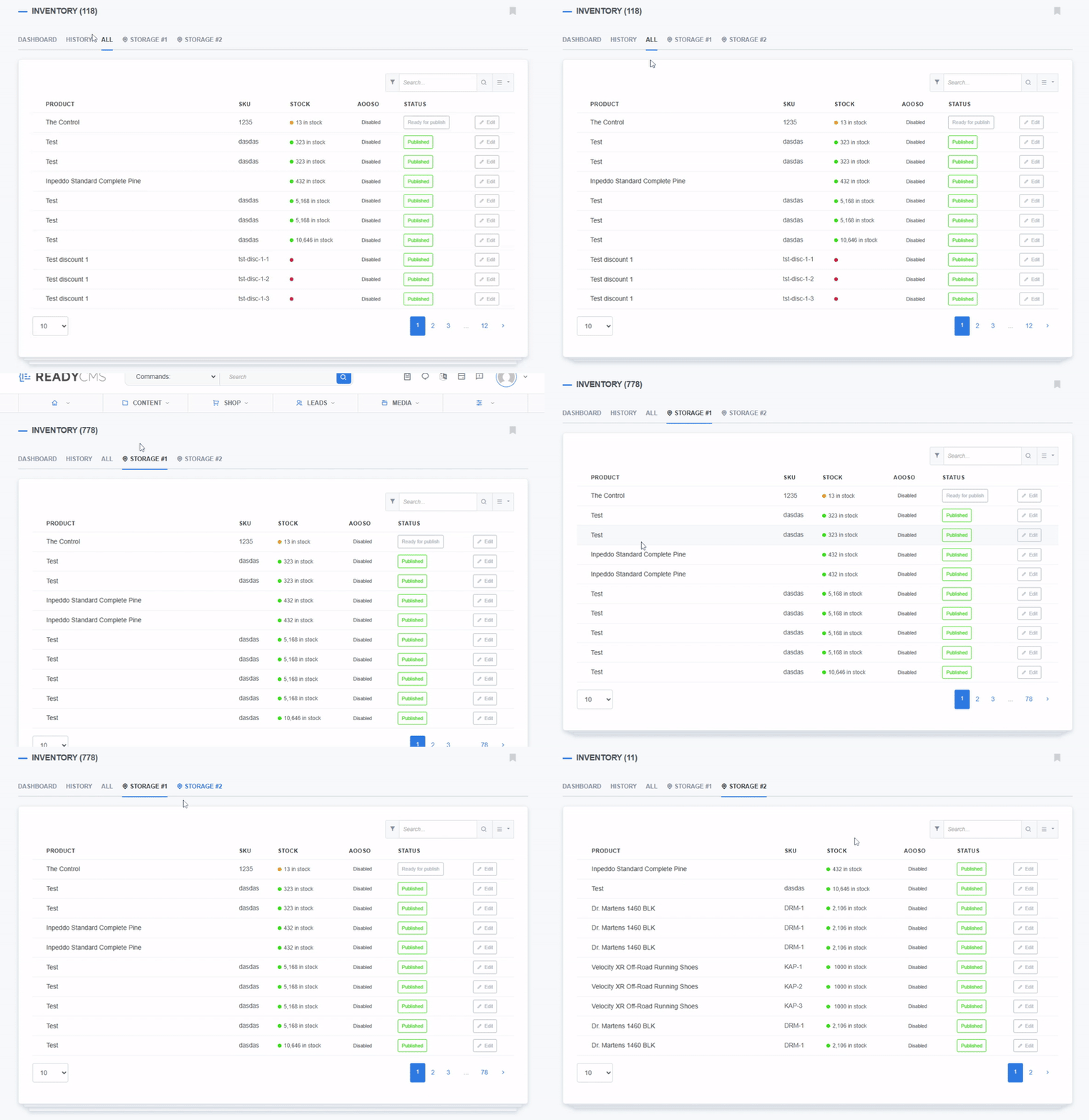
This is your main control center. It's where you can monitor and adjust stock across your business.
The interface is simple yet powerful. Designed to feel natural when you manage your stock.
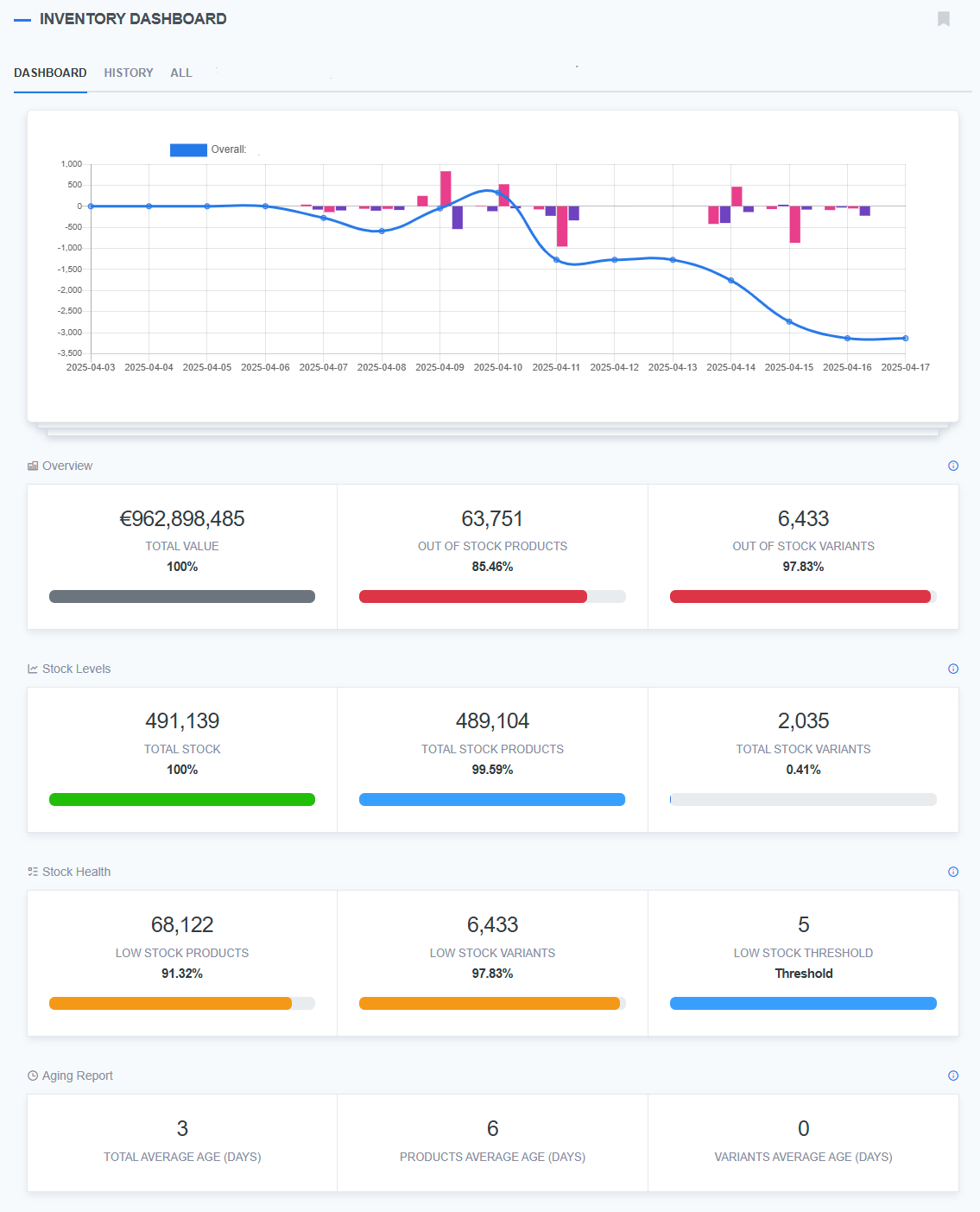
This setup helps you instantly see the big picture or zoom into the details of a single location.
Products show their current stock, broken down by location if applicable. Admins can make manual adjustments (like for damaged items or corrections), and each change is logged.
Each product has its own inventory section, where you can:
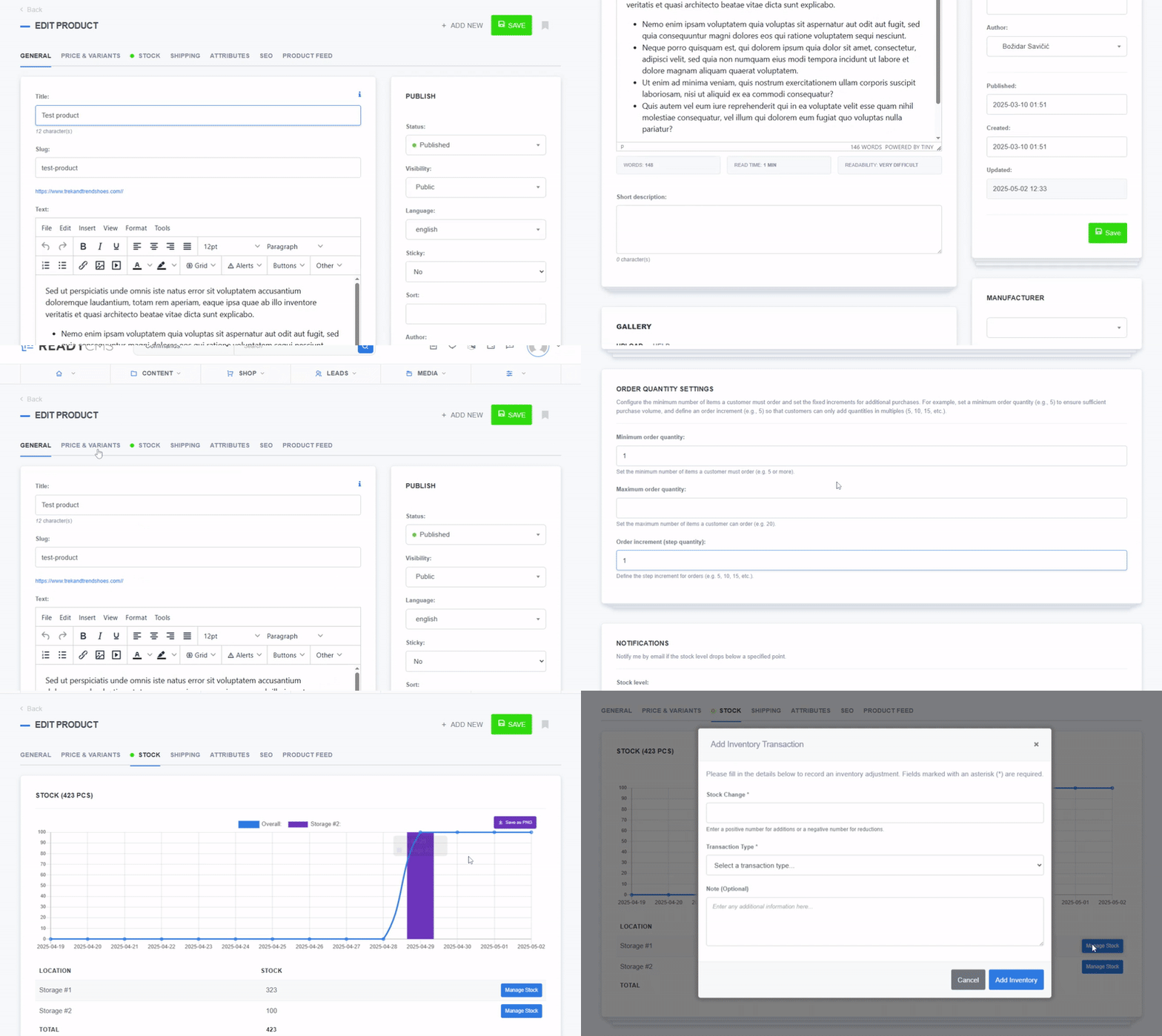
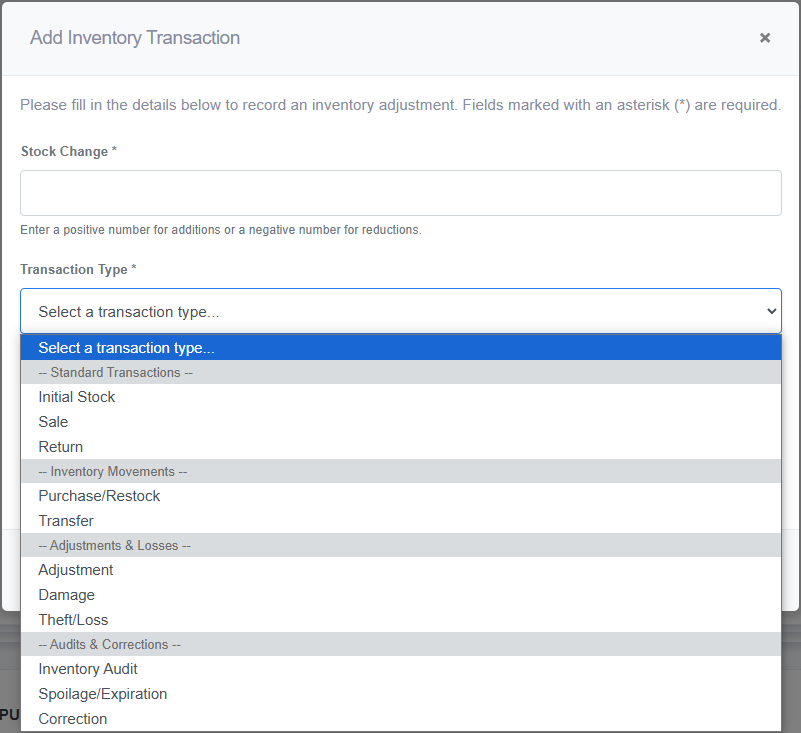
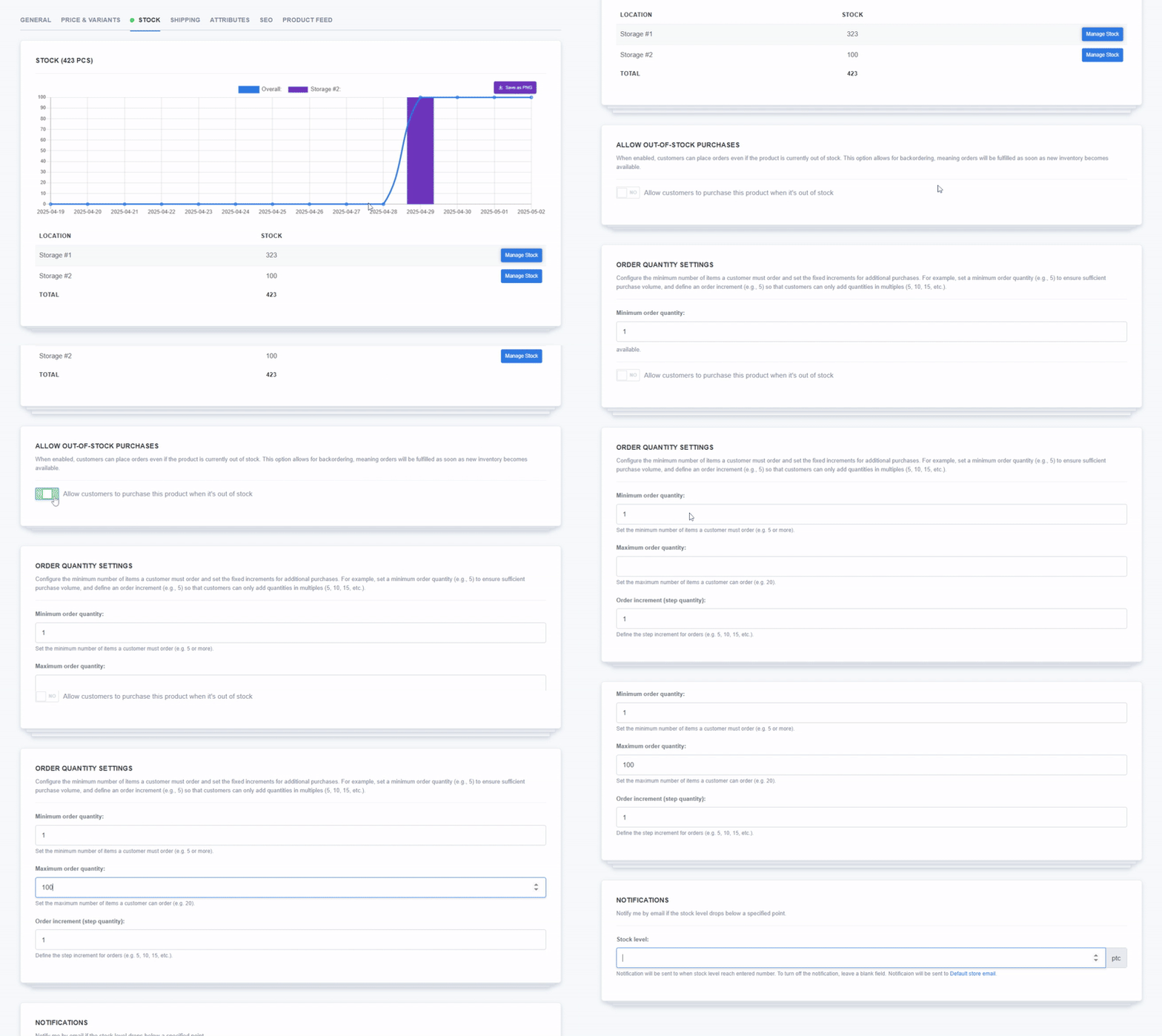
This means you can control inventory at a very granular level, not just store-wide.
If the product has variants, each variant has its stock management section:
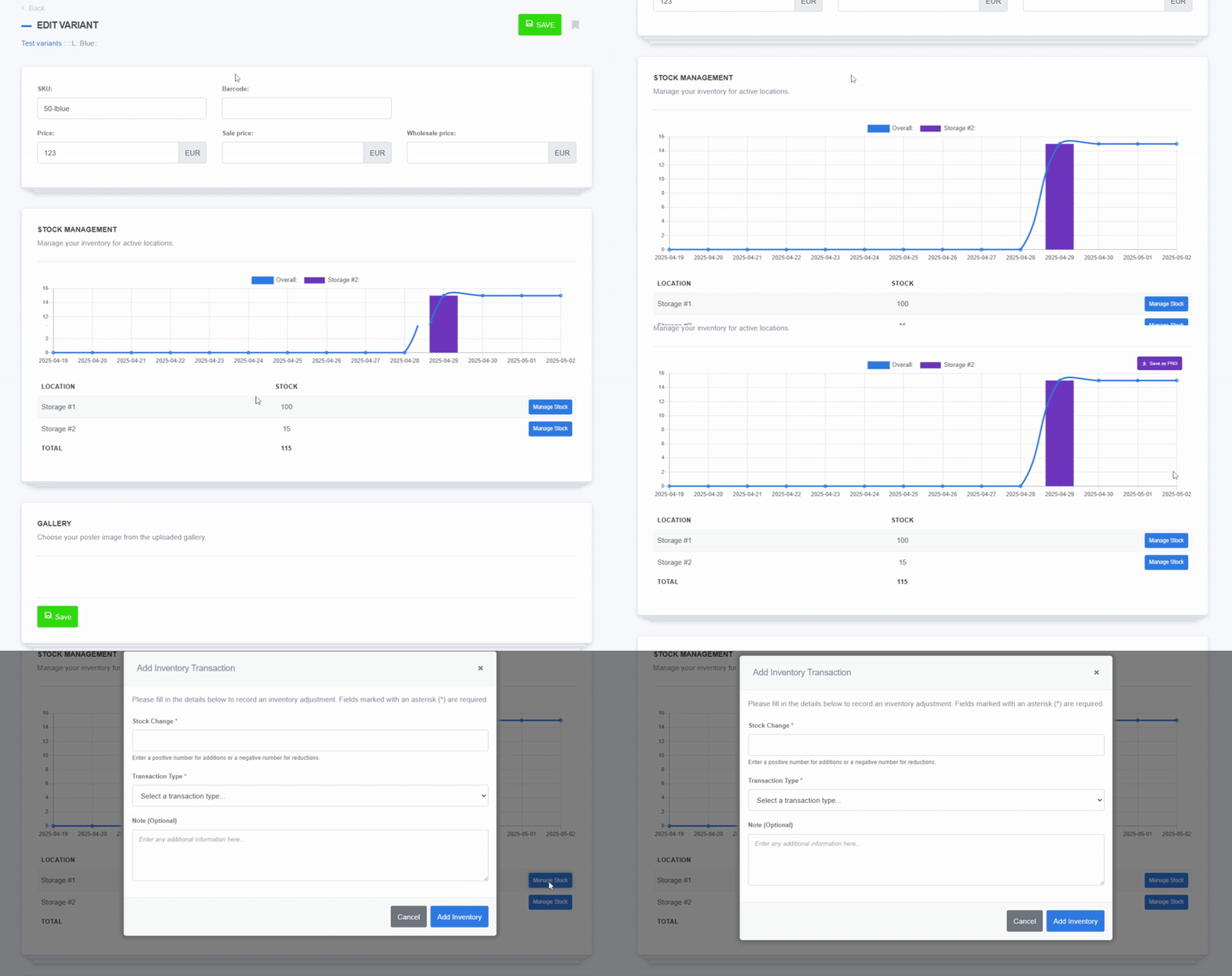
Whether you're managing stock in one location or ten, ReadyCMS ensures that inventory is updated in real time. Stock is instantly adjusted across the system when a product is sold online or through an integrated POS.
If multi-location stock is enabled, each location can have its own stock level, and transfers between locations are handled as movements, too, with full tracking.
Under shop settings, you can define your store locations. Each location gets:

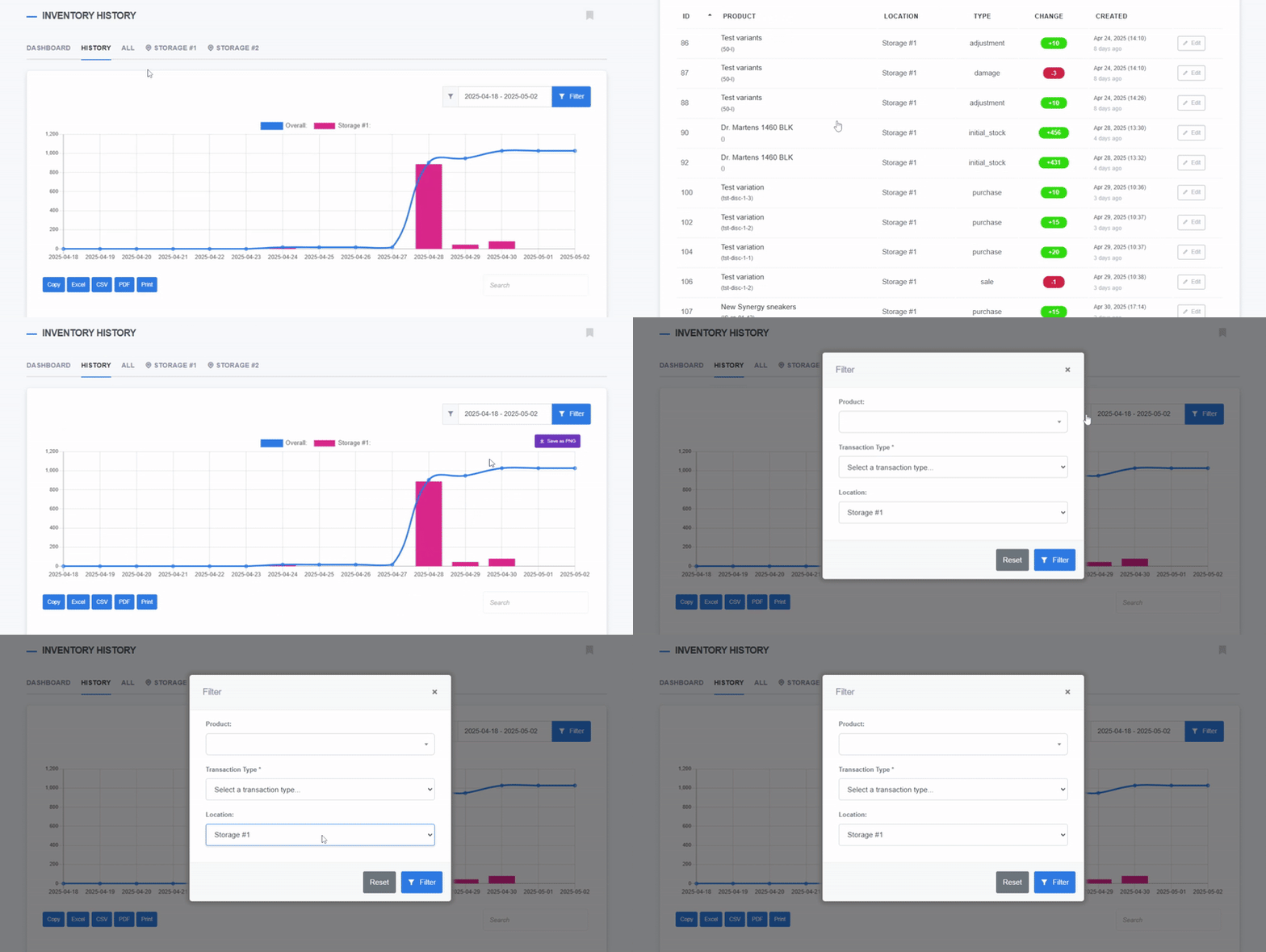
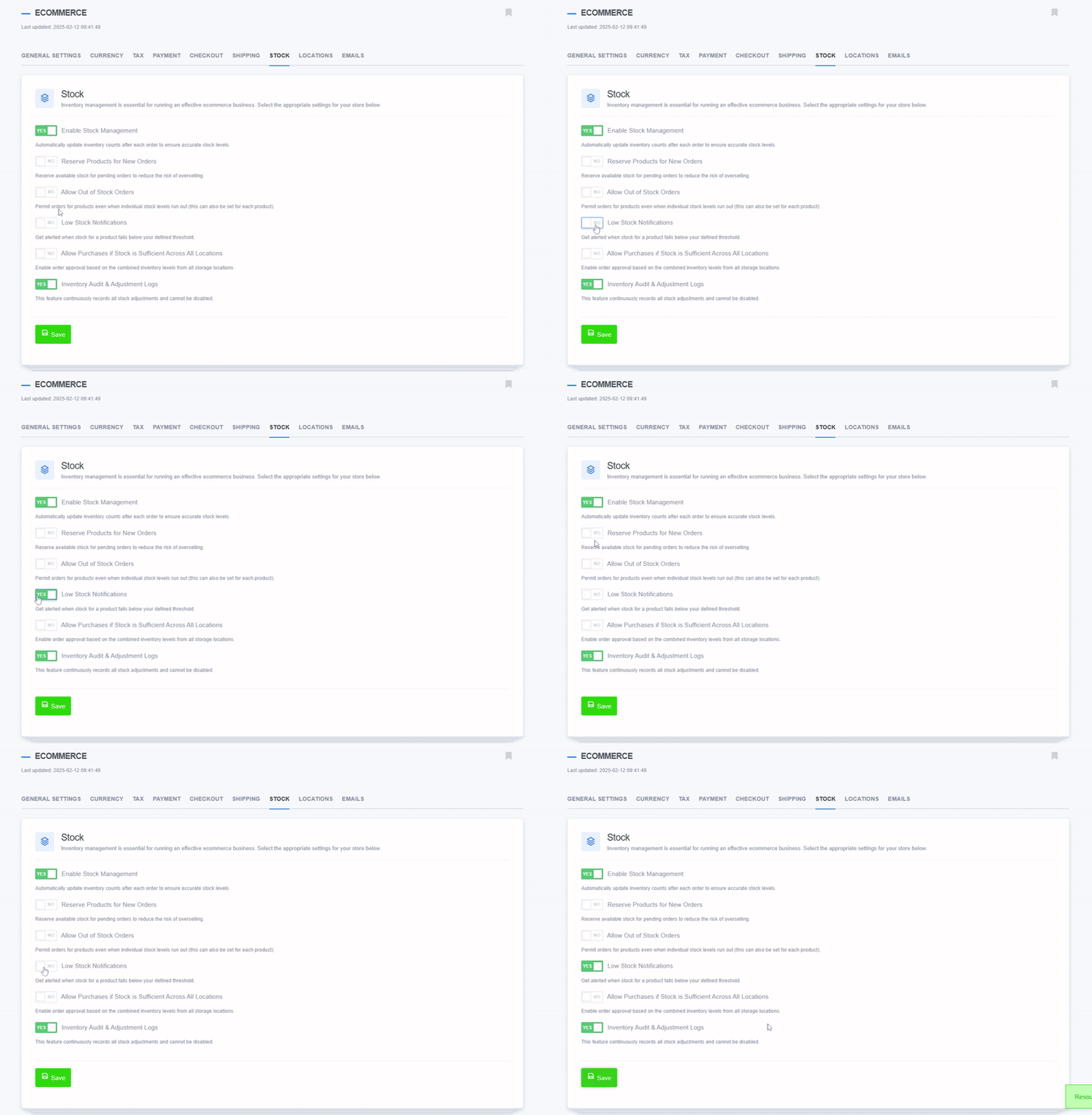 We'll dive deeper into multi-location inventory and how you can manage it all from one dashboard—no spreadsheets needed. We'll also explore why tracking stock history is essential for smooth daily operations and smarter inventory decisions.
Learn how ReadyCMS’ Multi-environment manager separates development, testing, staging, and production so teams can build and test changes...
Learn how to ask customers for reviews without sounding pushy, including timing tips, email examples, common mistakes, and ReadyCMS...
See how opens, clicks, open rate, and click rate reveal what works—and how ReadyCMS Mail Metrics turns every send into useful feedback.
Build a practical three-email abandoned cart sequence with recommended timings, subject line ideas, message examples, and ReadyCMS...
Learn why customers leave products in their carts, what you can improve during checkout, and how automated ReadyCMS emails can help...
ReadyCMS Assistants can simplify your website tasks, enhance SEO, and improve content quality with expert guidance.
Book a demo or talk with our team about putting these ideas to work.