

Pinterest Catalog feed
Tap into TikTok's massive user base by automatically generating a product feed in XML or CSV format from ReadyCMS. Showcase your products on TikTok Shopping, boost brand awareness, and engage a younger, trend-driven audience.
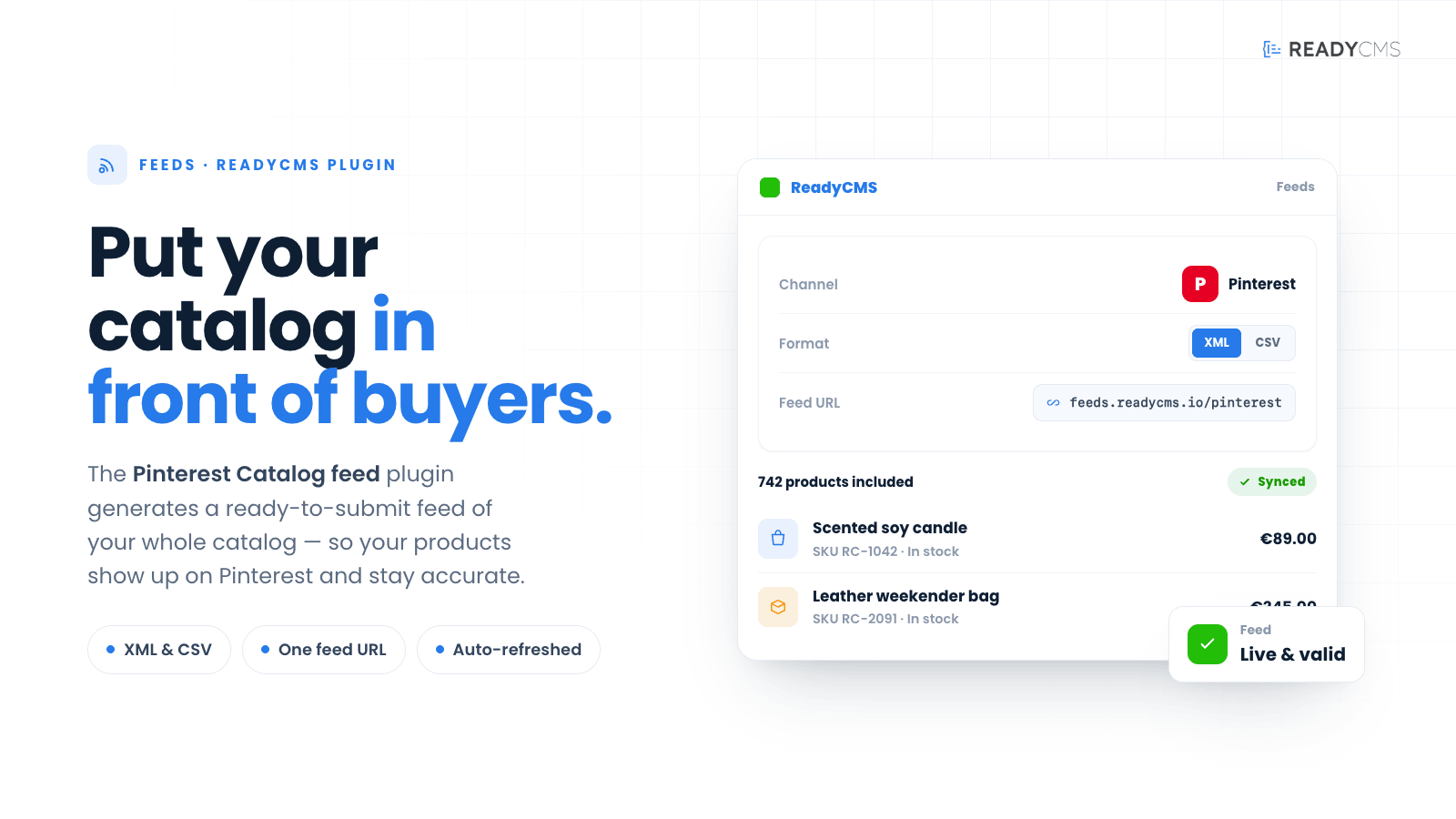
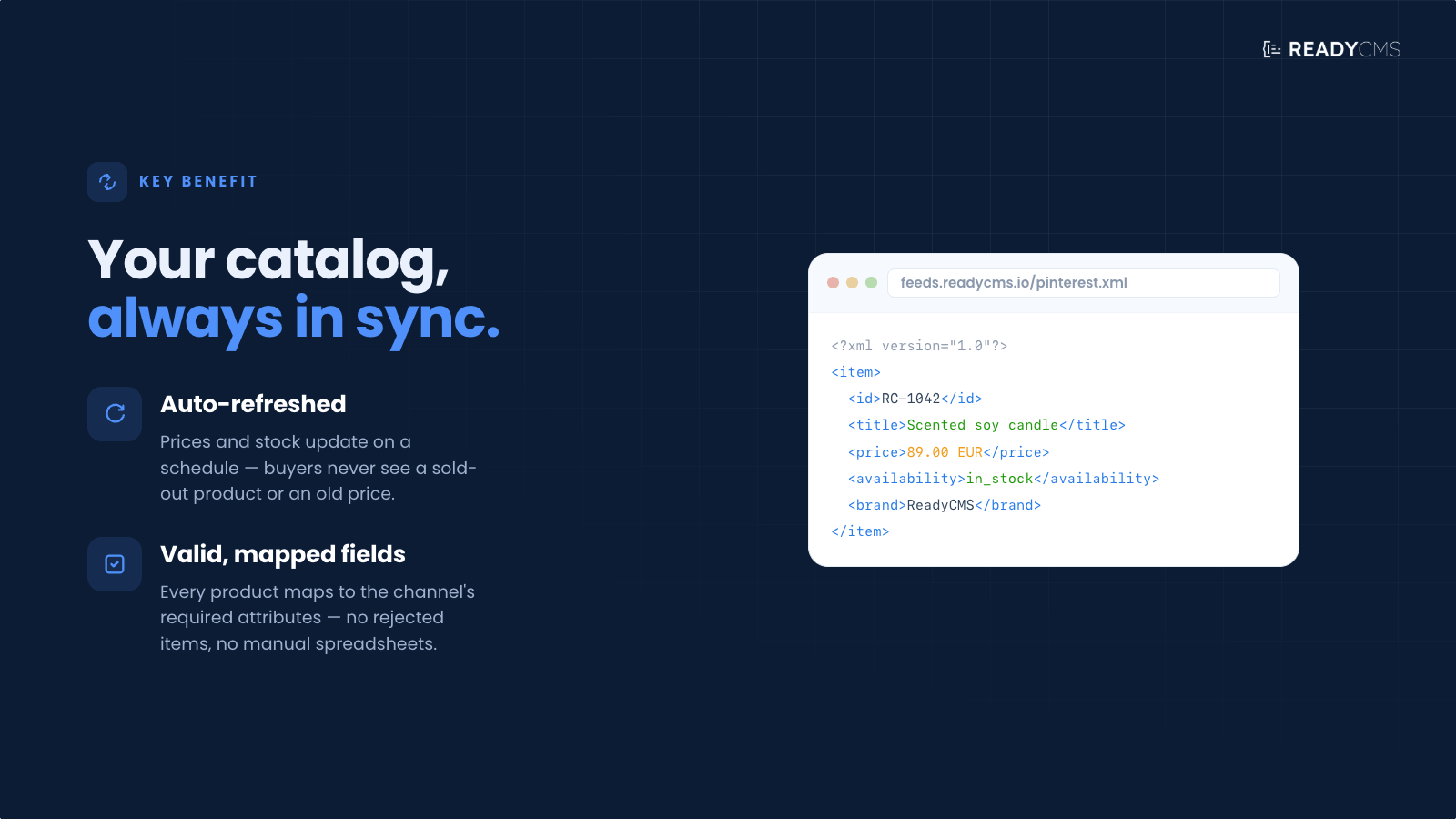
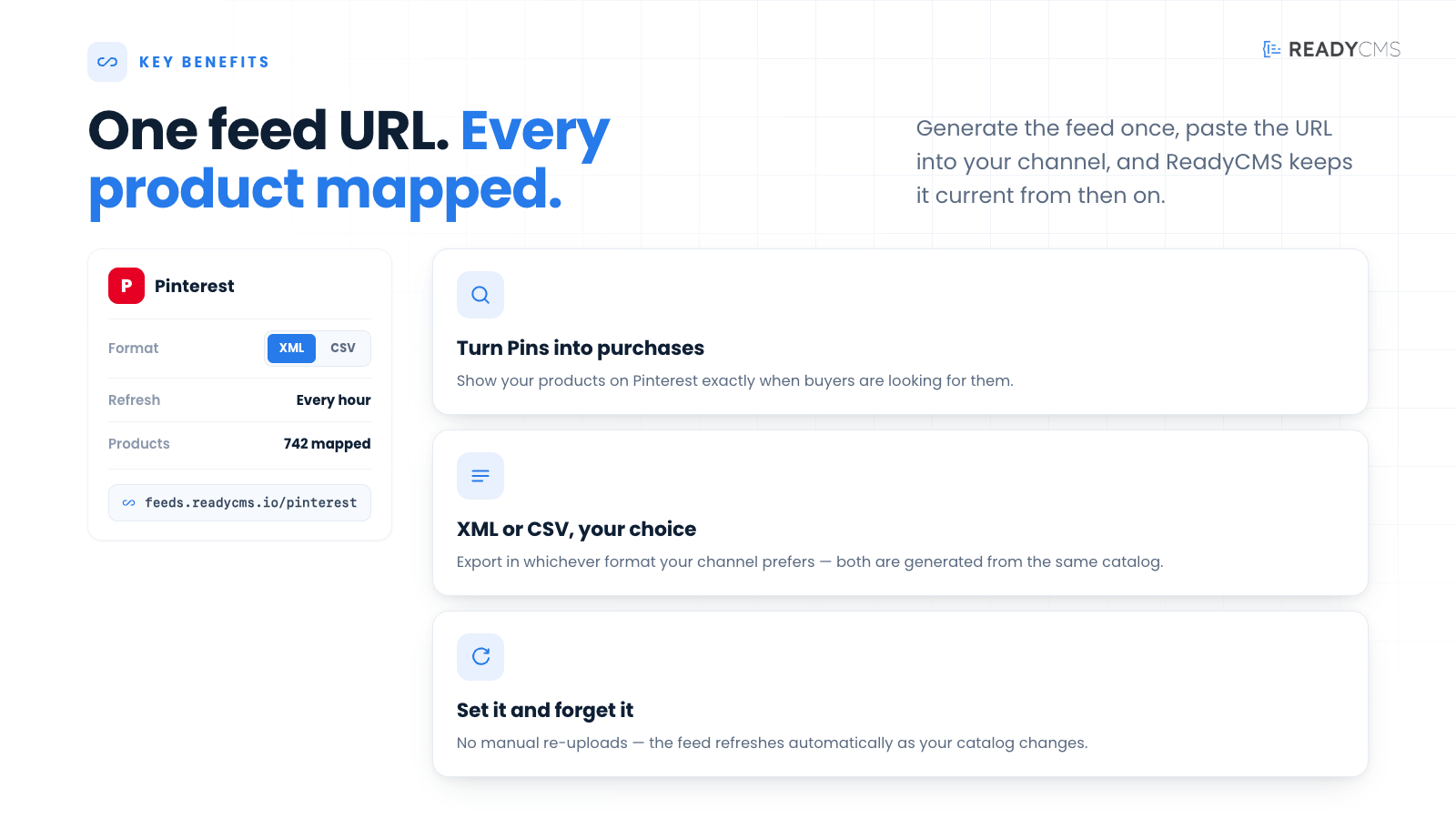
Pinterest Catalog feed (CSV, XML) integration for ReadyCMS
With Pinterest Catalog feed integration, merchants can quickly list products on Pinterest, one of the most influential social discovery platforms. Creating a product catalog feed (in CSV or XML) will make it easier for potential customers to browse and purchase your items directly from your pins.
Key features
- Automated feed generation: Effortlessly produce a Pinterest-compliant feed in either CSV or XML directly from ReadyCMS.
- Rich Pins support: Provide detailed product information (title, price, description) for more engaging, actionable pins.
- Consistent updates: Keep your Pinterest catalog current with regular automated updates—no manual refreshing is required.
- Flexible configuration: Filter which products to include, ensuring your Pinterest presence matches your marketing strategy.
Benefits
- Enhanced discovery: Millions of Pinterest users search for ideas and products; featuring your catalog increases the likelihood of discovery.
- Visual inspiration: Pinterest is a highly visual platform, making it ideal for lifestyle, fashion, home décor, and more.
- Omnichannel consistency: Maintain accurate pricing, descriptions, and availability across Pinterest and your ReadyCMS store.
- Seamless settings: Quickly generate feed URLs and sync them with Pinterest Business, saving time and effort.
How it works
The Pinterest Catalog Feed plugin creates a product feed containing essential attributes, such as title, price, image link, product link, and more, formatted according to Pinterest's catalog requirements. You can access these feeds at:
- CSV Feed: https://feed.readycms.io/pinterest-catalogue-feed-csv
- XML Feed: https://feed.readycms.io/pinterest-catalogue-feed-xml
Once you provide Pinterest with one of these feed URLs, Pinterest will pull your product data and publish it in your catalog.
Guide
- Always active
- As with all other feed plugins, Pinterest Catalog Feed is already integrated and active.
- Configure feed parameters
- You may add parameters like
limit,status,category[], etc. - Example:
?limit=50or?category[]=32&category[]=423.
- You may add parameters like
- Verify your feed
- Navigate to the CSV or XML feed URL and confirm your products appear with accurate titles, descriptions, and prices.
- Add the feed URL to Pinterest
- Log in to your Pinterest Business account.
- Go to Catalogs and choose Data Source (or a similar option).
- Paste the feed URL and set your desired update schedule (daily, weekly, etc.).
- Monitor and update
- Monitor any feed errors in Pinterest (e.g., missing attributes or policy compliance).
- Adjust your ReadyCMS product data or feed parameters as needed.
Customizable feed parameters
ReadyCMS provides a variety of customizable parameters to help you filter and organize product data for precise and effective feed management.
Below is a comprehensive list of the parameters you can use:
| Parameter | Description | Usage example |
|---|---|---|
limit |
Limits the number of items in the feed. Defaults to a high number if limit=0. |
&limit=10 |
random |
Orders the items randomly. | &random=true |
featured |
Filters items to include only those marked as featured. | &featured=true |
manufacturer_id |
Filters items by a specific manufacturer ID. | &manufacturer_id=123 |
status |
Filters items based on their status. | &status=active |
on_sale |
Includes only items that are on sale. | &on_sale=true |
availability |
Includes items in stock (stock > 0 ) or the Allow out-of-stock option is enabled. | &availability=true |
in_stock |
Includes only items that are in stock (stock > 0). | &in_stock=true |
tag |
Filters items by tags. Can accept multiple tags as an array. | &tag[]=15&tag[]=542 |
category |
Filters items by category. Can accept multiple categories as an array. | &category[]=32&category[]=423 |
manufacturer |
Filters items by manufacturer. Accepts multiple manufacturers as an array. | &manufacturer[]=12&manufacturer[]=323 |
min_price, max_price |
Filters items by a price range. | &min_price=50&max_price=200 |
min_wholesale_price, max_wholesale_price |
Filters items by wholesale price range. | &min_wholesale_price=30&max_wholesale_price=100 |
min_weight, max_weight |
Filters items by weight range. | &min_weight=1&max_weight=10 |
sku |
Filters items by SKU for an exact match. | &sku=12345 |
sku_contains |
Filters items where the SKU contains a specific string. | &sku_contains=abc |
sku_starts_with |
Filters items where the SKU starts with a specific string. | &sku_starts_with=abc |
sku_ends_with |
Filters items where the SKU ends with a specific string. | &sku_ends_with=123 |
barcode |
Filters items by barcode for an exact match. | &barcode=987654321 |
barcode_contains |
Filters items where the barcode contains a specific string. | &barcode_contains=987 |
barcode_starts_with |
Filters items where the barcode starts with a specific string. | &barcode_starts_with=987 |
barcode_ends_with |
Filters items where the barcode ends with a specific string. | &barcode_ends_with=321 |
title_contains |
Filters items where the title contains a specific string. | &title_contains=example |
title_starts_with |
Filters items where the title starts with a specific string. | &title_starts_with=example |
title_ends_with |
Filters items where the title ends with a specific string. | ?title_ends_with=product |
slug |
Filters items by slug for an exact match. | &slug=example-slug |
slug_contains |
Filters items where the slug contains a specific string. | &slug_contains=example |
slug_starts_with |
Filters items where the slug starts with a specific string. | &slug_starts_with=example |
slug_ends_with |
Filters items where the slug ends with a specific string. | &slug_ends_with=slug |
permalink |
Filters items where the permalink contains a specific string. | &permalink=example-url |
custom_field |
Filters items where a custom field contains a specific string. | &custom_field=example-data |
product_feed |
Filters items where the product feed contains a specific string. | &product_feed=data |
created_after, created_before |
Filters items created within a specific date range. | &created_after=2024-01-01&created_before=2024-12-31 |
updated_after, updated_before |
Filters items updated within a specific date range. | &updated_after=2024-01-01&updated_before=2024-12-31 |
published_after, published_before |
Filters items published within a specific date range. | &published_after=2024-01-01&published_before=2024-12-31 |
g_id |
Filters items by a specific global ID. | &g_id=123 |
visibility |
Filters items by their visibility status. | &visibility=public |
lang |
Filters items by language. | &lang=en |
charge_vat |
Filters items by whether VAT is charged. | &charge_vat=1 |
required_shipping |
Filters items based on whether shipping is required. | &required_shipping=1 |
Note: These parameters can be appended to your feed URLs to customize the data output according to your specific requirements.
Best practices for creating a Pinterest Catalog feed
- Use high-quality images: Pinterest is a visual platform. Clear, appealing images help your pins stand out and increase click-through rates.
- Engaging titles & descriptions: Craft enticing product titles and descriptions that include relevant keywords, making it easier for Pinterest users to discover your pins.
- Stay consistent with branding: Keep your images, descriptions, and messaging consistent with your ReadyCMS store and other marketing channels.
- Update regularly: Schedule frequent feed updates to reflect new products, price changes, or stock availability. This ensures a smooth user experience.
- Comply with Pinterest's policies: Review Pinterest's advertising and catalog guidelines. Avoid disallowed content or formatting errors to maintain a healthy account.
FAQ
Q1: What is the Pinterest Catalog feed plugin for ReadyCMS?
A1: This integration automatically generates a Pinterest-friendly product feed (CSV or XML) from your ReadyCMS store. This feed can be used to create product-rich pins and shopping experiences on Pinterest.
Q2: Do I need a Pinterest Business account to use this feed?
A2: Yes. You need a Pinterest Business account (and access to the Catalogs feature) to upload product feeds. It's free to set up and provides analytics tools and promotional options.
Q3: Can I limit certain products in the feed?
A3: Absolutely. By using parameters like status=active, category[], or manufacturer[], you can control which products are included.
Q4: How often does the feed update?
A4: The feed can be updated as often as you'd like—schedule updates in Pinterest Catalogs (daily, weekly, or monthly) to re-fetch fresh data from the ReadyCMS feed URL.
Q5: What if a product doesn't meet Pinterest's guidelines?
A5: Products that violate Pinterest's rules (e.g., certain prohibited items or content) may be flagged or removed. Always check Pinterest's commerce and advertising policies to ensure compliance.
Q6: Does Pinterest allow product variations (e.g., size, color)?
A6: Yes. If your feed data includes variation-specific attributes (e.g., color, size), Pinterest can display them accordingly. Ensure these attributes are properly set up in your ReadyCMS product data.
Q7: Are there extra fees for this plugin?
A7: Check your ReadyCMS plan details. Generally, the plugin itself may be free or included in a package, but Pinterest might have fees for certain advertising features (like promoted pins).
Q8: Can I track the performance of my Pinterest catalog?
A8: Yes. Pinterest Business provides analytics for catalog performance, including impressions, clicks, and conversions. You can also use UTM parameters or third-party tools to gather additional insights.
Build more with ReadyCMS
Explore the full plugin marketplace or book a demo to see them in action.