

HubSpot sync for ReadyCMS
Sync ReadyCMS customer contacts, latest order status, and placed-order activity to HubSpot for better CRM workflows, segmentation, sales follow-up, and customer support.
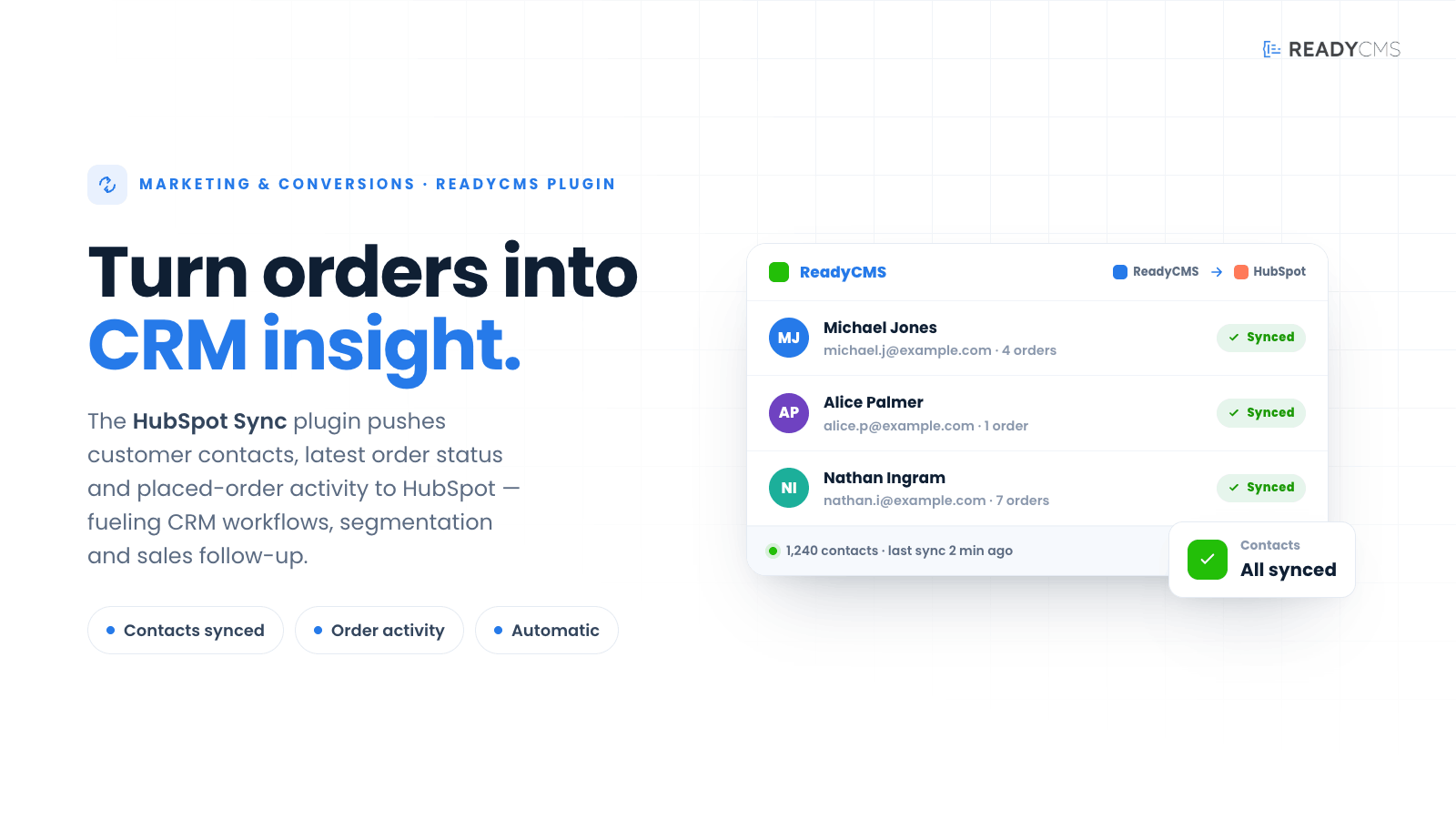
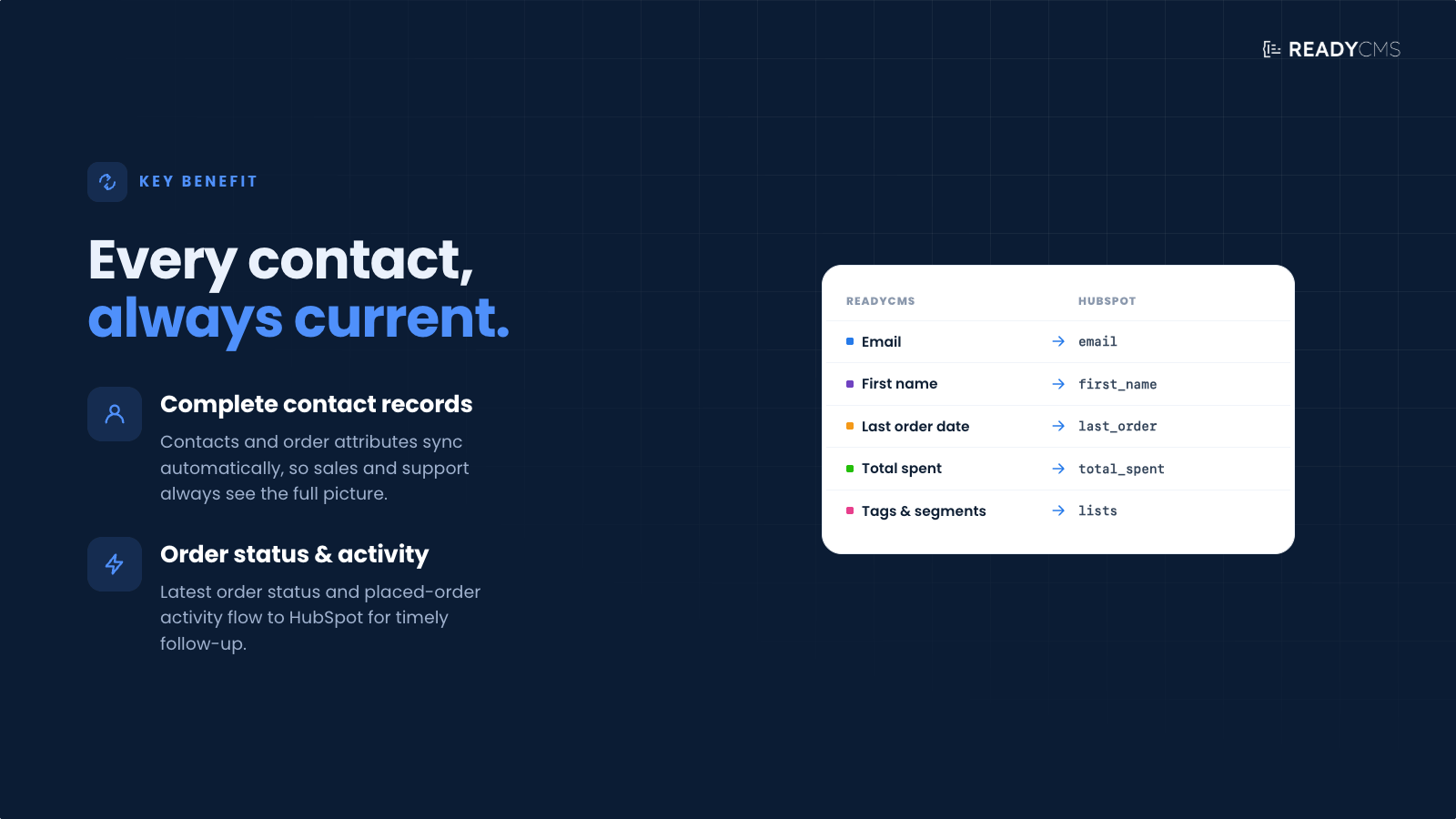
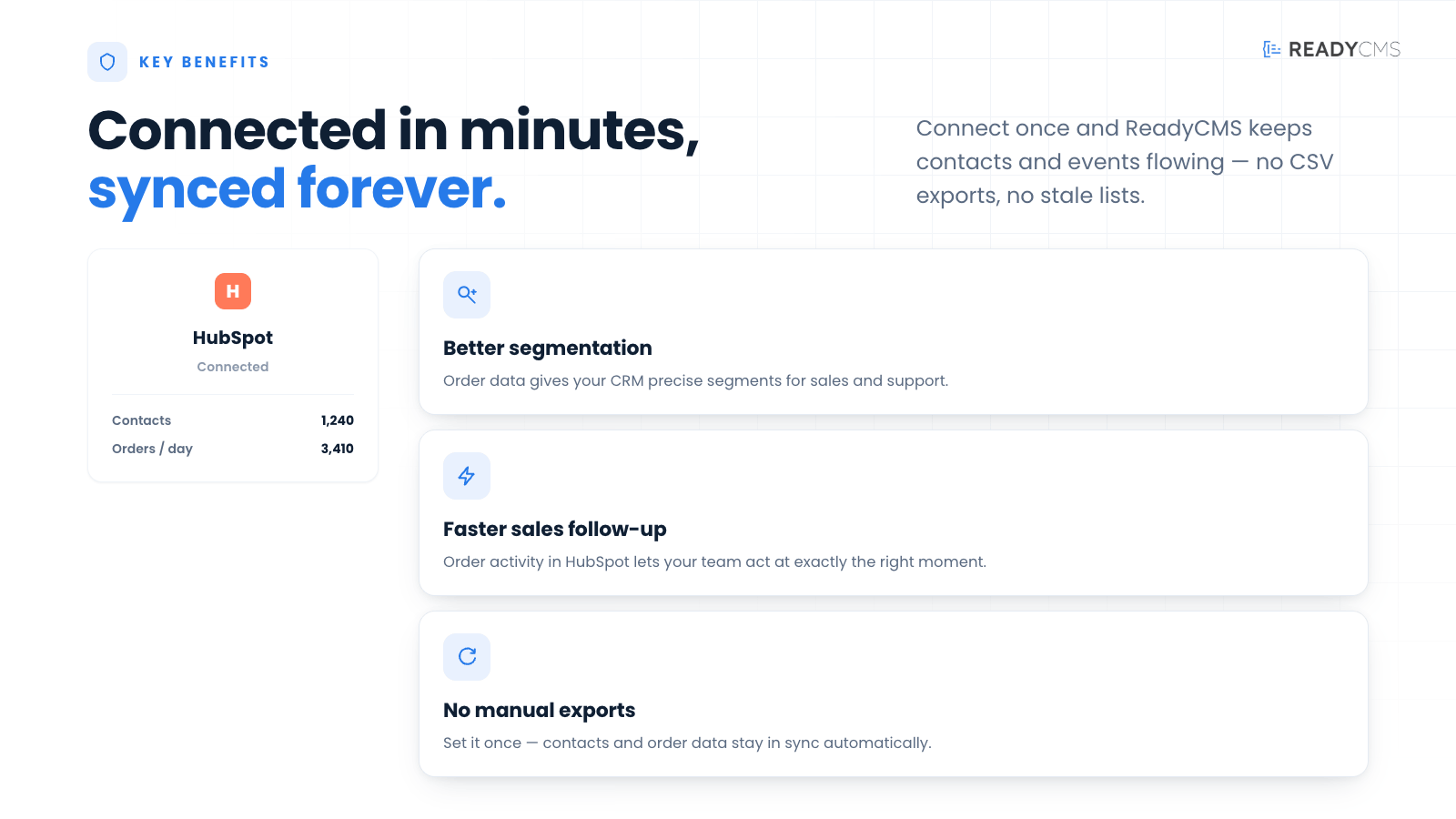
HubSpot sync for ReadyCMS: sync customer contacts, order status, and e-commerce timeline notes to HubSpot CRM
HubSpot sync connects ReadyCMS with HubSpot, helping your team keep customer and order information available where sales, marketing, and support already work.
The plugin syncs customer contacts, latest order status, and placed-order timeline notes from ReadyCMS to HubSpot. This makes it easier to build CRM segments, trigger lifecycle workflows, follow customer activity, and support buyers with more context.
The sync is event-driven, so important ecommerce activity is sent to HubSpot when it happens. An hourly cron reconciliation also runs in the background to check for missed updates and keep data aligned.
Key benefits
- Keep HubSpot contacts up to date
Sync customer contact details from ReadyCMS to HubSpot to keep your CRM useful and up to date. - See the e-commerce activity inside HubSpot
Placed orders can appear as timeline notes, giving sales and support teams a clearer view of customer activity. - Sync the latest order status
Keep the most recent order status in HubSpot to improve follow-up, support, and customer communication. - Improve segmentation and lifecycle marketing
Use ReadyCMS ecommerce data in HubSpot to create better customer segments, campaigns, automations, and win-back flows. - Support customers with more context
Give support teams quick access to order-related information without switching between systems. - Event-driven sync with hourly reconciliation
Important updates are sent when they happen, while the hourly cron helps catch and correct anything that may have been missed. - Reduce manual CRM work
Save time by automatically sending key customer and order information from ReadyCMS to HubSpot.
How it works
HubSpot sync sends customer and ecommerce activity from ReadyCMS to HubSpot, so your CRM can reflect what is happening in your ReadyCMS store.
Before activating the plugin, make sure you have an active HubSpot account and access to HubSpot settings/API credentials.
Also, it’s important to have a clear decision on which customer and order fields should be synced.
For best results:
- Use the email address as the main contact identifier
- Keep customer email fields required where possible
- Review HubSpot custom properties before enabling full sync
- Test with a small number of records first
- Check logs after activation
- Make sure marketing, sales, and support teams know which fields are synced
Guide
- Open plugins in ReadyCMS: Go to the ReadyCMS admin panel and open the Plugins section.
- Find HubSpot sync: Locate the HubSpot sync plugin in the plugin list.
- Enter your HubSpot connection details: Add the required HubSpot API credentials or access token in the plugin settings.
- Choose sync options: Configure what should be sent to HubSpot, such as customer contact data, latest order status, and placed-order timeline notes.
- Map fields as needed: Review how ReadyCMS fields map to HubSpot contact properties. This helps ensure that customer data appears in the right place inside HubSpot.
- Save settings: Save the configuration before running the first sync.
- Activate the plugin: Turn it on for your ReadyCMS instance.
- Run a test sync: Test the connection with one customer or recent order to confirm that the data appears correctly in HubSpot.
- Review HubSpot contact records: Open HubSpot and check whether the synced contact, order status, and timeline note are displayed as expected.
- Monitor sync logs: Use ReadyCMS plugin logs or sync history to check successful updates, failed attempts, and any missing configuration.
How the sync works
HubSpot sync uses two sync layers:
- Event-driven sync
When a relevant customer or order event happens in ReadyCMS, the plugin sends the update to HubSpot. - Hourly cron reconciliation
Once per hour, the plugin checks recent records and reconciles them with HubSpot. This helps catch missed events, temporary API issues, or interrupted syncs.
FAQ
Q1: What does HubSpot Sync do?
A1: HubSpot Sync sends customer contacts, latest order status, and placed-order timeline notes from ReadyCMS to HubSpot. It helps keep CRM records connected with e-commerce activity.
Q2: Is the sync one-way or two-way?
A2: The plugin is designed to sync data from ReadyCMS to HubSpot. ReadyCMS remains the source for customer and ecommerce activity, while HubSpot receives the synced CRM data.
Q3: Which customer data is synced?
A3: The plugin can sync customer contact information from ReadyCMS to HubSpot. The exact fields depend on your plugin configuration and HubSpot property mapping.
Q4: How are contacts matched in HubSpot?
A4: Contacts are usually matched by email address. If a matching HubSpot contact exists, the plugin updates it. If not, a new contact can be created, depending on your configuration.
Q5: What happens when a customer places an order?
A5: When an order is placed in ReadyCMS, the plugin can send a timeline note to the customer’s HubSpot contact record. This gives your team a quick view of e-commerce activity directly inside HubSpot.
Q6: Does the plugin sync order status?
A6: Yes. HubSpot Sync can sync the latest ReadyCMS order status to HubSpot, helping teams understand where a customer’s order currently stands.
Q7: What is the difference between event-driven sync and hourly cron reconciliation?
A7: Event-driven sync sends updates when important actions happen in ReadyCMS. Hourly cron reconciliation runs in the background to check recent data and make sure HubSpot stays aligned, even if an event was missed or delayed.
Q8: Can this be used for HubSpot workflows and segmentation?
A8: Yes. Once the data is available in HubSpot, it can be used for segmentation, lists, lifecycle workflows, sales follow-ups, support processes, and customer communication.
Q9: Will HubSpot Sync create duplicate contacts?
A9: The plugin should match contacts using a unique identifier, usually the email address. Proper field mapping and clean customer data help reduce the risk of duplicates.
Q10: What happens if HubSpot is temporarily unavailable?
A10: If HubSpot cannot be reached, the plugin should log the failed sync attempt. The hourly cron reconciliation can help retry and correct missed updates once the connection is available again.
Q11: Do I need custom HubSpot properties?
A11: In many cases, yes. If you want to store ReadyCMS-specific values such as latest order status, order count, or ecommerce-related notes, you may need to create or map HubSpot properties before enabling full sync.
Q12: Can I choose which data gets synced?
A12: Yes, the plugin settings should let you control which supported data types are synced, such as customer contacts, the latest order status, and placed-order timeline notes.
Q13: Does this replace HubSpot?
A13: No. HubSpot Sync does not replace HubSpot. It connects ReadyCMS ecommerce activity with HubSpot so your CRM, marketing, sales, and support teams can work with a better customer context.
Q14: What should I check if data is not appearing in HubSpot?
A14: Check the HubSpot API credentials, plugin status, field mapping, sync logs, customer email address, and HubSpot permissions. Also, confirm that the hourly cron is running correctly.
Q15: What happens if I deactivate the plugin?
A15: When the plugin is deactivated, new ReadyCMS customers and order updates will no longer be sent to HubSpot. Previously synced data in HubSpot remains there unless it is manually changed or removed.
Build more with ReadyCMS
Explore the full plugin marketplace or book a demo to see them in action.