

Multi-currency for ReadyCMS
The Multi-currency plugin is essential for global e-commerce platforms catering to diverse customers. This pre-installed and always active plugin enables the seamless addition of multiple currency options to your products, allowing customers to view prices in their preferred currency. This flexibility not only enhances user experience but also streamlines international sales.


Multi-currency plugin for ReadyCMS
This plugin is ideal for businesses looking to expand their reach globally. It offers customers the convenience of understanding product prices in their currency. It's a vital tool for any e-commerce platform aiming to enhance accessibility and user engagement globally.
Key features and benefits
- Multiple currency listings: Easily assign prices in various currencies to each product, catering to a global audience.
- Seamless integration: The Multi-currency plugin integrates smoothly without requiring manual activation or setup. It is a pre-built feature within ReadyCMS.
- User-friendly interface: Manage currency settings effortlessly through a simple and intuitive backend interface.
- Enhanced customer experience: Allows customers to shop in their preferred currency, potentially reducing cart abandonment rates.
- Increased global reach: Opens up your market by accommodating international customers with local currency pricing.
- Operational efficiency: Reduces the workload of manually updating currency conversions, ensuring accurate pricing across different markets.
How it works
This feature is crucial for shops aiming to expand their reach to international markets.
It ensures customers can shop in their local currency, significantly enhancing the user experience and potentially increasing conversion rates.
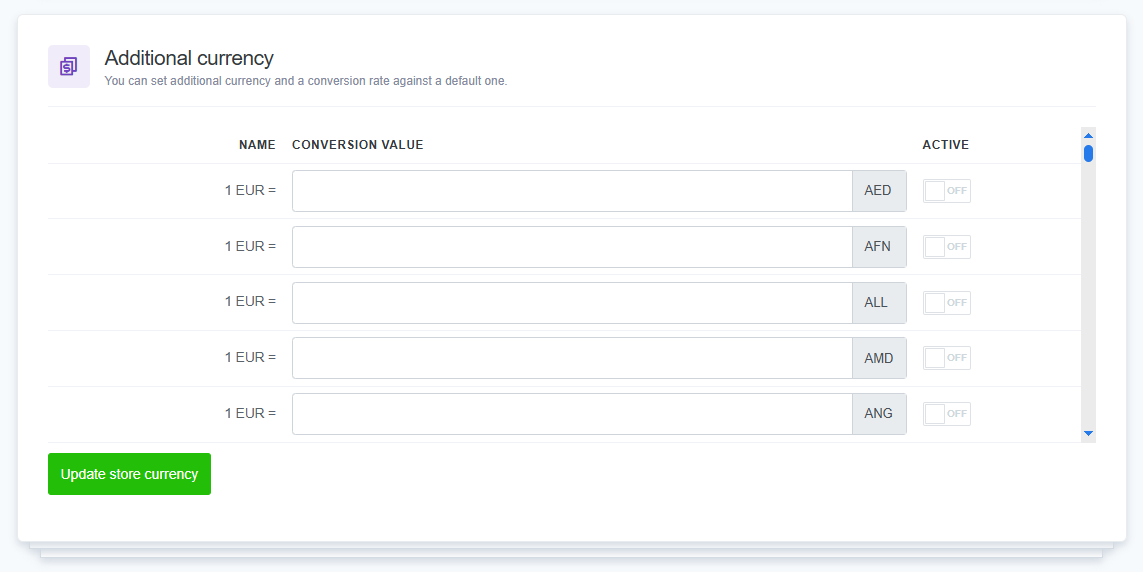
The plugin is always active and integrated directly with your shop's settings, enabling you to select and manage different currencies from your dashboard.
Guide
- Access Currency settings:
- Navigate to your ReadyCMS dashboard and go to
Shop>Currencysettings. This section is dedicated to managing all currency-related configurations.
- Navigate to your ReadyCMS dashboard and go to
- Enable desired currencies:
- In the Currency settings, you will find a list of available currencies. Check the boxes next to the currencies you want to activate for your store.
- You can select as many currencies as needed to match your target markets.
- Configure exchange rates:
- Manually enter the exchange rates for each selected currency relative to your base currency.
If your main currency is, f.e, EUR, then it's 1 EUR = x amount of additional currency. - You can also choose to activate our Auto-currency Exchange Rate plugin.
- Manually enter the exchange rates for each selected currency relative to your base currency.
- Save your Settings:
- After selecting your currencies and setting the exchange rates, save your configurations.
- The selected currencies will now be available on your e-commerce site.
By following these steps, you can effectively utilize the Multi-currency plugin to cater to a diverse customer base and provide them with a tailored shopping experience that meets their local needs.
Multi-currency and Auto-currency exchange rate integration
To further enhance the functionality of the Multi-currency plugin, consider integrating it with the Auto-currency Exchange Rate plugin. This additional plugin automatically updates currency conversion rates, ensuring your pricing remains accurate and competitive without manual intervention.
It perfectly complements the Multi-currency plugin, providing a dynamic and responsive currency management system.
FAQ
Q1: How do I add a new currency to my shop using the Multi-currency plugin?
A1: To add a new currency, navigate to Shop > Currency settings in your ReadyCMS dashboard. Here, you can select from a list of available currencies. Check the box next to the currencies you wish to add and save your settings.
Q2: Can the exchange rates be updated automatically?
A2: Yes, you can integrate the Multi-currency plugin with the Auto-currency Exchange Rate plugin to update exchange rates automatically. This ensures that the prices remain accurate and competitive without needing manual updates.
Q3: Can prices be displayed in multiple currencies simultaneously on product pages?
A3: The Multi-currency plugin allows you to display prices in different currencies, but typically, the customer will see prices in their selected or local currency based on their preferences or location settings.
Q4: How does the plugin handle currency conversion at checkout?
A4: At checkout, the currency conversion is applied based on the customer's chosen currency and the latest exchange rate, ensuring the payment is processed in the customer's selected currency.
Q5: What happens if a currency I've enabled is no longer needed?
A5: If you need to disable a currency, return to Shop > Currency settings and uncheck the currency you no longer wish to offer. Remember to save your settings after making any changes.
Q6: Can I set different currency prices, or does it convert automatically?
A6: The Multi-currency plugin primarily converts prices based on the current exchange rates. Additional customization or another plugin might be required if you need to set specific prices for different currencies without relying on conversion rates.
Q7: How can I ensure the currency symbols appear correctly on my site?
A7: Currency symbols should automatically appear correctly based on your activated currencies. If there are any issues with how they are displayed, check your site's font and encoding settings to ensure they support special characters.
Q8: What should I do if the currency conversion is not working correctly?
A8: First, check that the exchange rates are current and correct. If you're using automatic updates, ensure the Auto-currency exchange rate plugin functions properly. If problems persist, contact ReadyCMS support for further assistance.
Build more with ReadyCMS
Explore the full plugin marketplace or book a demo to see them in action.