

Media for ReadyCMS
Optimize your website's media management with ReadyCMS's Media plugin. This plugin offers flexible storage options and manual image compression to boost performance and enhance SEO.
Media plugin for ReadyCMS
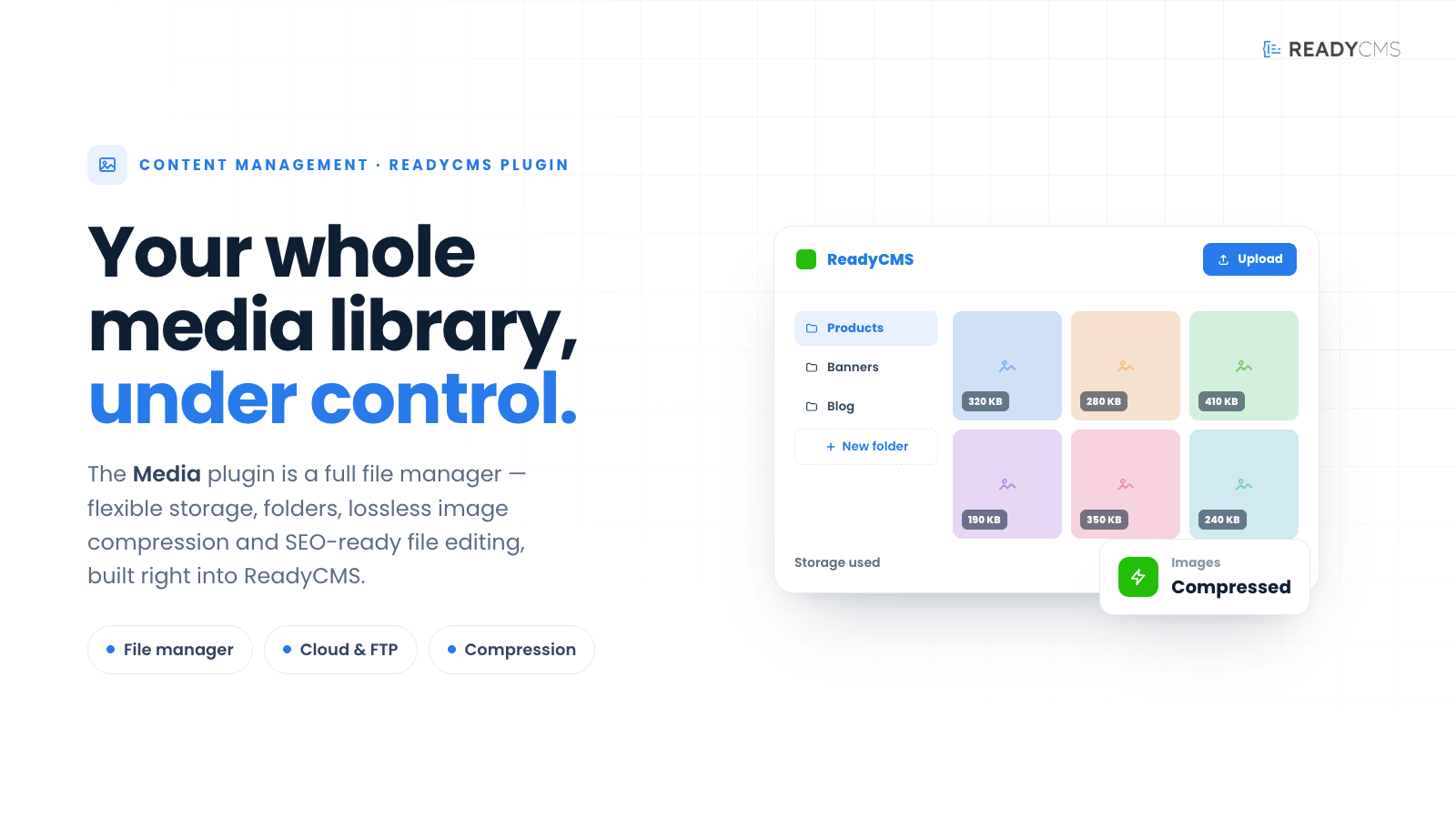
The Media plugin is a central hub for all media management within ReadyCMS. It supports various file types and provides functionalities for efficiently uploading, organizing, and managing media files. This plugin is essential for websites that handle multiple media types and require robust media management capabilities.
Key features and benefits
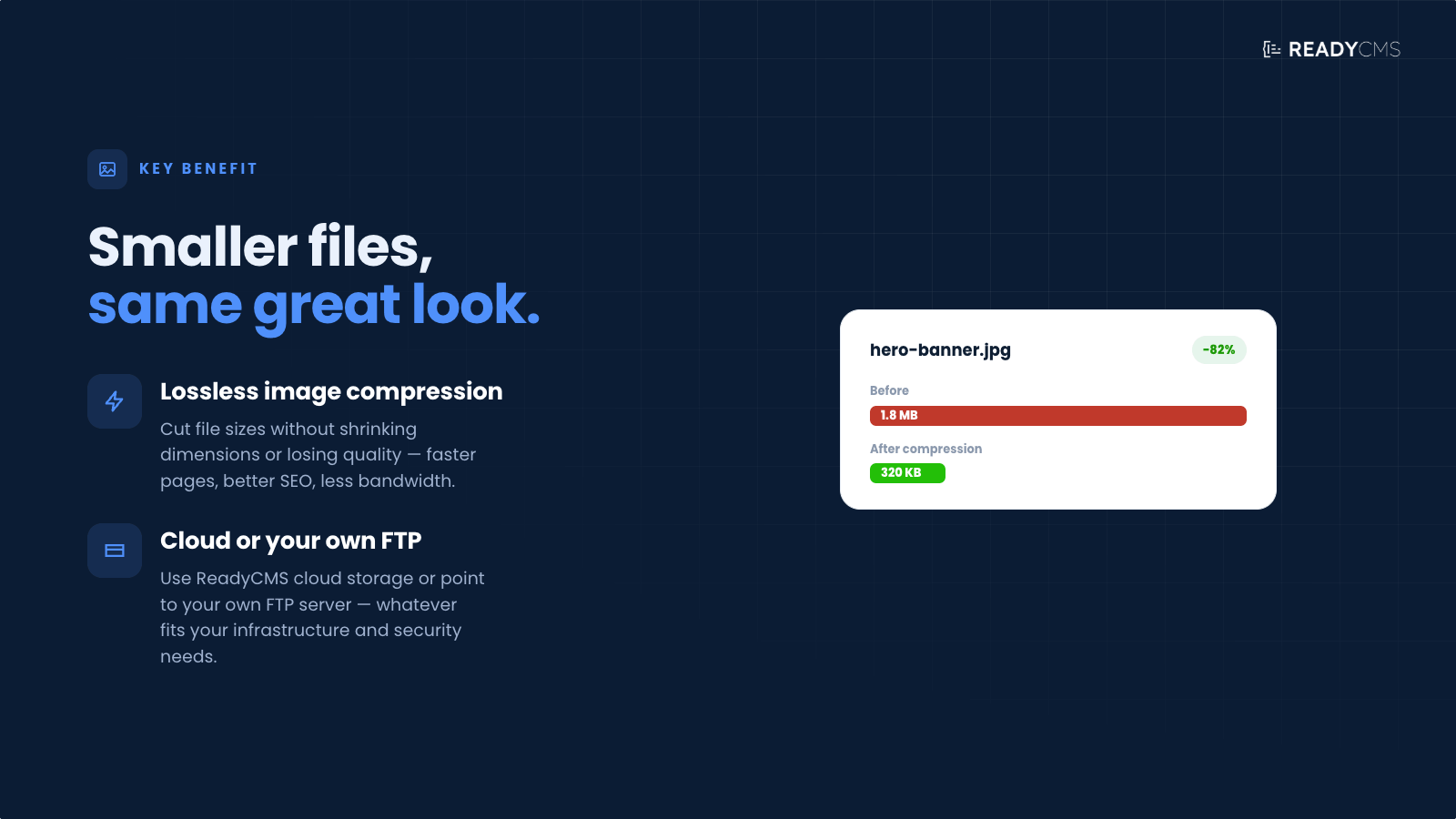
- FTP and Cloud storage options: Choose between using ReadyCMS's cloud storage or setting up your own FTP server for media storage, providing flexibility depending on your infrastructure or security needs.
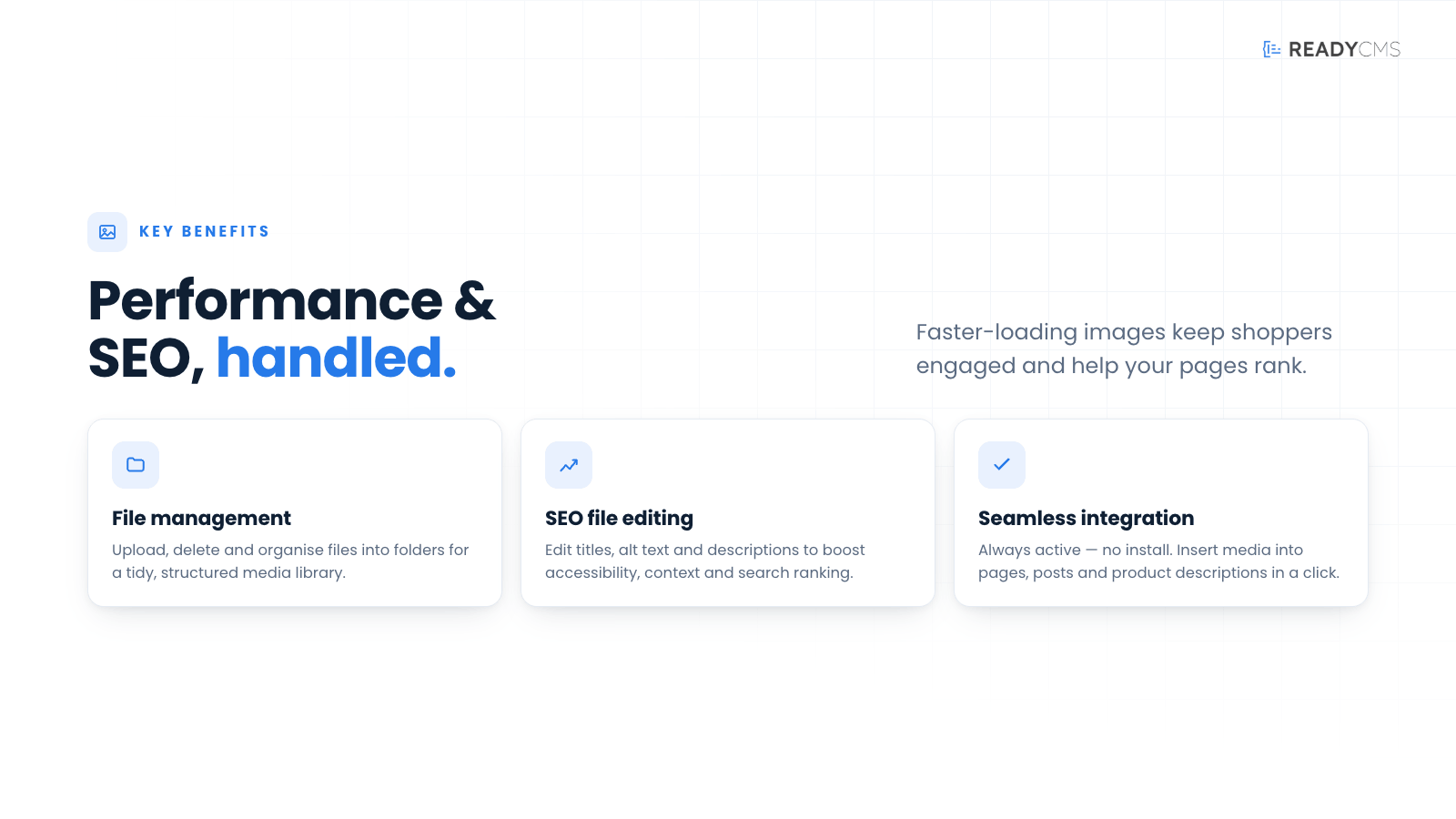
- File management: The integrated file manager allows you to upload, delete, and easily manage files. You can also create folders to maintain a structured media library.
- Compress Media Images: Lossless image compression decreases file size without reducing image dimensions. This enhances page load speed, improving user experience and SEO. It also saves bandwidth, particularly for mobile users on limited data plans.
- File editing: You can edit file attributes like titles, alternative text, and descriptions to improve SEO and contextual relevance.
- Seamless integration: Always active in your ReadyCMS environment; no separate installation is required. Easy insertion of media into pages, posts, or product descriptions from the media library.
How it works
The Media feature is accessible directly from the ReadyCMS dashboard and does not require additional settings. It integrates seamlessly with your CMS environment and provides a user-friendly interface for managing media files.
Guide
- Accessing the media:
- Navigate to the Media section in the ReadyCMS main menu.
- Uploading files:
- Choose the storage type (Cloud Media or FTP Media).
- Use the 'Upload files' button to add new files via a drag-and-drop or file browser.
- Organizing files:
- Create new folders to organize files.
- Rename or delete existing folders as needed.
- Managing files:
- Edit file attributes to ensure accurate and SEO-friendly media descriptions.
- Delete files or download files directly from the media manager.
- Using media in content:
- You can integrate media files directly into your web pages, blog posts, or e-commerce product descriptions from the media library.
Help
For more information about the Media feature and its functionalities, consult our official documentation.
Smart image compression
The Media plugin works hand in hand with our Smart image compression plugin. This feature allows you to compress media images (manually optimize your photos), ensuring your website remains fast and efficient. By reducing the file size of your images without compromising quality, this feature plays a crucial role in enhancing user experience and improving SEO rankings.
This compression is considered lossless.
The Smart image compression feature offers two primary methods for optimizing your images: single and bulk image compression.
-
Single image compression
To compress a single image, navigate to the Media Library by selecting Media from the ReadyCMS main menu. Locate the specific image you want to compress and click the Compress button next to it. The plugin will perform a lossless compression, decreasing the file size while maintaining the original dimensions and quality of the image. This method optimizes high-impact images that are frequently loaded or essential to your site's performance.
-
Bulk image compression
ReadyCMS also provides a bulk image compression option, which allows you to compress up to 25 images simultaneously. Click on the Compress Images option in the Media tab of your ReadyCMS dashboard and start compressing and optimizing your images.
Help
For more guidance, refer to our official documentation.
Best practices for compression
- Regular compression: Periodically compress new images added to your media library to maintain optimal site performance.
- Image quality checks: Review images to ensure visual quality remains intact after compression.
- Selective compression: Focus on compressing high-traffic or large images, significantly impacting load times.
- Consistent optimization: Ensure that all images are consistently optimized to provide a uniform user experience across your website.
FAQ
Q1: How do I set up FTP storage for the Media feature?
A1: You can set up FTP storage by entering your FTP server details in the Media settings section. This allows you to manage your files directly from ReadyCMS using your own server resources.
- Navigate to
Settings > Mediain the ReadyCMS dashboard. - Select the Remote Server tab (as opposed to the Media Cloud tab).
- Enter your FTP server details (host, username, password) and save the settings.
Q2: Can I edit the URL of uploaded files?
A2: Once a file is uploaded, you cannot change its URL directly in ReadyCMS, but you can manage other file attributes, such as titles, alt text, and descriptions, to enhance SEO or internal organization.
Q3: Is there a limit to the number of files I can upload?
A3: Your storage limits typically depend on the storage capacity of your ReadyCMS plan. For specifics, check your plan details or the ReadyCMS support.
Q4: How do I ensure my media files are secure?
A4: Files stored via the Media plugin are secured under ReadyCMS's general security protocols. If you choose FTP Media, ensure your FTP server uses secure protocols like SFTP or FTPS, and keep credentials confidential.
Q4: How does the Compress Media Images feature work?
A4: The Compress Media Images feature allows you to manually optimize your images by reducing their file sizes through lossless compression. This means the image's physical dimensions remain unchanged, but the file size is decreased, leading to faster load times without any loss in visual quality. You can compress individual images by selecting them and clicking the Compress button or compress multiple images simultaneously (up to 25) using the Bulk Compress button. This manual approach ensures you have full control over which images are optimized and when the compression occurs.
Q7: Can I schedule bulk compressions?
A7: Currently, bulk compressions must be initiated manually. To maintain optimal performance, review and compress new images as needed regularly.
Q8: What image formats are supported for compression?
A8: The Compress Media Images feature supports common image formats such as JPEG, PNG, and GIF. To utilize the compression functionality effectively, ensure your images are in one of these formats.
Build more with ReadyCMS
Explore the full plugin marketplace or book a demo to see them in action.